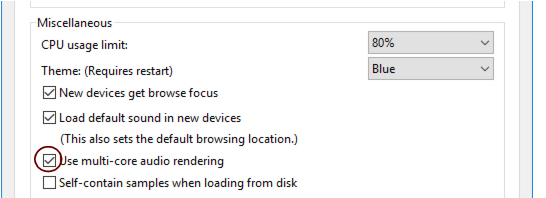
Optimizing your computer system In this manual we do not have the possibility to give you detailed procedures for optimizing your computer for maximum power. This is a subject that we could write complete books on. However, there are a couple of very useful things to check and adjust. About Multi-core processors When you’re using a multi-core processor, such as a dual-core or quad-core processor, Reason will take full advantage of this in a very sophisticated way. Similarly, if your computer has several multi-core processors, Reason will use the full capacity of these to enhance the performance. If your computer has one or several multi-core processors, Reason automatically detects this and automatically enables the “Use multi-core audio rendering” function on the General page in Preferences: If you are working with a song document which has one single, very long and processor-heavy serial audio chain - and only a few devices that process the audio in parallel - you could try and deactivate the multi-core audio rendering option. This might enhance the performance in these special situations. However, under normal circumstances multi-core audio rendering is always the best option performance-wise. About hard drives Most state-of-the-art hard drives, including SSD drives, will work perfectly together with Reason. Generally, the faster hard drive(s) you use, the better. Most mechanical hard drives of today runs at 5.400 rpm or faster, which is sufficient for use with Reason. A large hard drive is also highly recommended when working with DAWs like Reason. A single song with a lot of recordings in it could easily reach around 1 GB in final size. During recording and editing, the song file size could be a lot bigger than that, so a hard drive space of at least 20 GB is definitely recommended. General optimization tips Finally, we’d like to share a couple of other general optimization tips: • Quit other programs that are running at the same time as Reason. • Remove background tasks on your computer. This might be any background utilities you have installed as well as networking, background Internet activities etc. • Under Windows, make sure you use the latest and most efficient ASIO driver for your audio card. • Only work on one Reason Song document at a time. Songs that are open in the background do consume some processing power, even though they’re not playing. • Lower the sample rate setting on the Audio tab in the Preferences dialog. This is a very quick and convenient way to try to play a song that your computer otherwise can’t handle. • Raise the Buffer size on the Audio tab in the Preferences dialog. See “Making Buffer Size adjustments in the Reason Preferences dialog”.